Making Alarms Reliable on Android: Lessons from Building TaskBell
Exact alarms, Doze, battery savers, reboots and time zones: what it takes for a reminder app to ring at the right second, every time.

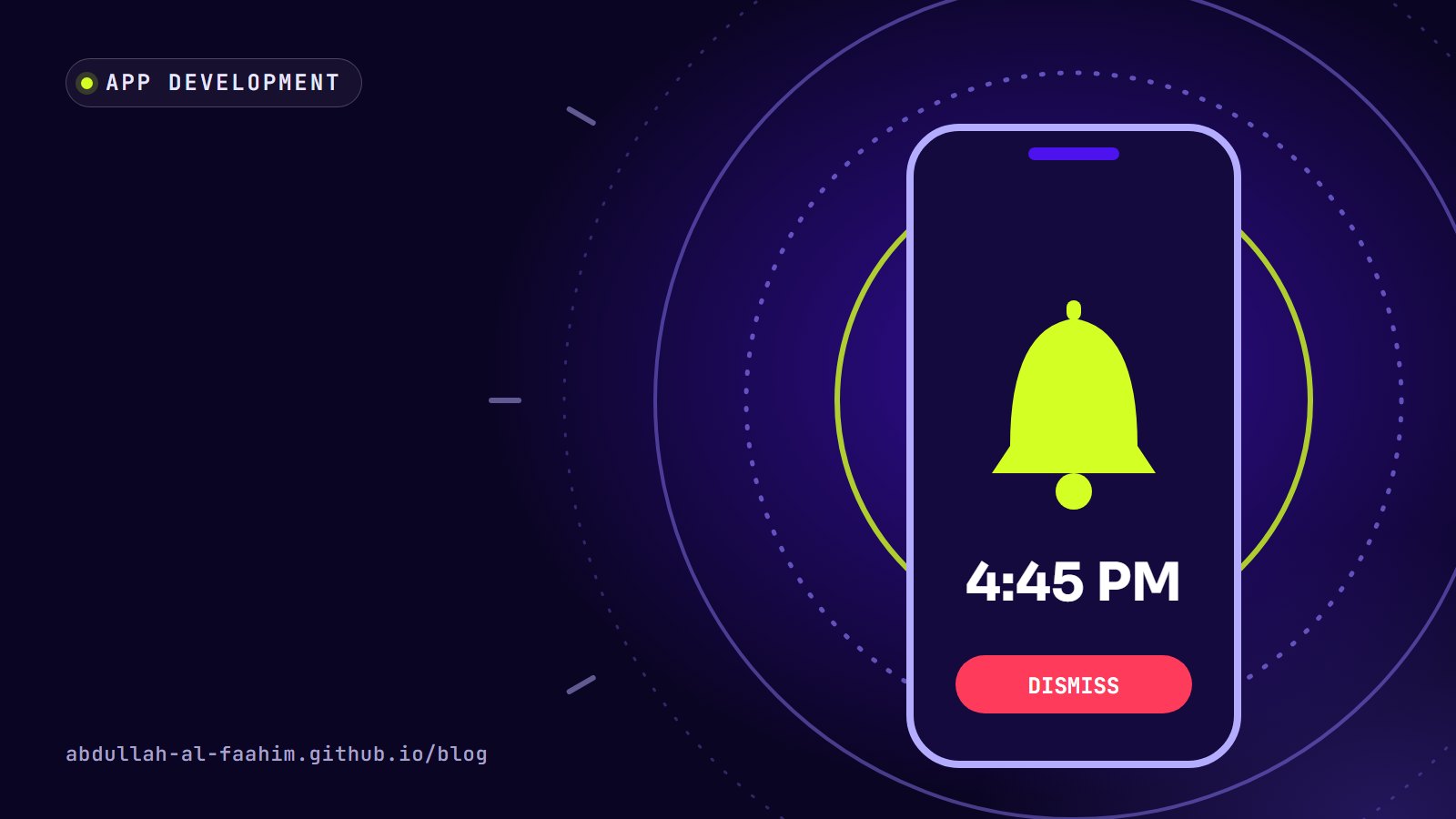
TaskBell has one job: ring before a task and ring again when it starts. A notes app can be a bit late. A reminder app that rings five minutes late is worse than no app at all, because you trusted it.
Getting an alarm to fire reliably on Android turned out to be the hardest part of the whole project. Android has spent years tightening what background apps are allowed to do, to protect battery life, and phone makers add their own aggressive battery savers on top. This post collects what I learned, in the hope it saves someone else a few weeks.
Pick the right kind of alarm
Android’s AlarmManager offers several ways to schedule work, and they are not equal.
- Inexact alarms let the system batch your alarm with others to save battery. Fine for “sometime this hour”, useless for “at 4:45 PM”.
setExactAndAllowWhileIdle()fires at an exact time, even when the device is in Doze, the deep idle mode Android uses when a phone sits still with the screen off.setAlarmClock()is meant for alarms the user sets and expects. The system treats it as the highest priority, shows the alarm icon in the status bar and lets the user see the next alarm.
For a reminder that the user explicitly asked for, setAlarmClock() is the most honest and most reliable choice. It tells the system, and the user, exactly what the app intends.
Permissions changed under my feet
Exact alarms are now permission-gated.
- From Android 12, apps need the
SCHEDULE_EXACT_ALARMpermission to set exact alarms, and users can revoke it in settings. - Android 13 added
USE_EXACT_ALARM, intended for apps whose core function is alarms or calendars. Google Play limits which apps may declare it. - From Android 14,
SCHEDULE_EXACT_ALARMis no longer granted by default to most newly installed apps targeting recent Android versions, so the app has to ask.
The practical lesson: never assume you have permission. Check with canScheduleExactAlarms() before scheduling, explain clearly why the permission matters, and send the user to the right settings screen if it’s missing.
Notifications have the same story. From Android 13, apps must request POST_NOTIFICATIONS at runtime. A reminder app without notification permission is silent, so TaskBell asks for it during setup with a plain explanation.
Ringing over the lock screen
When a task starts, TaskBell shows a full-screen alarm over the lock screen, the same way a clock app does. That uses a notification with a full-screen intent.
Android 14 tightened this too: full-screen intents are meant for calls and alarms, and users can turn the permission off. The app checks canUseFullScreenIntent() and falls back to a high-priority notification if it’s not allowed, rather than failing silently.
To ring even when the phone is on silent, the alarm sound uses alarm audio attributes (USAGE_ALARM). That plays on the alarm stream, which is controlled separately from the ringer, the same as a normal alarm clock. Users can still choose a softer pre-reminder and a louder start alarm, and High and Urgent tasks keep ringing until they’re answered.
Alarms are forgotten on reboot
Alarms registered with AlarmManager don’t survive a reboot. If your app doesn’t reschedule them, every reminder silently disappears the next time the phone restarts.
The fix is to treat the app’s own database as the source of truth and rebuild alarms from it whenever something might have cleared them:
- After a reboot, with a receiver for
BOOT_COMPLETED(andLOCKED_BOOT_COMPLETEDif you want alarms to work before the user unlocks the phone for the first time). - After the app is updated, with
MY_PACKAGE_REPLACED. - After the time or time zone changes, with
TIME_SETandTIMEZONE_CHANGED, because a task at 9:00 AM should still ring at 9:00 AM local time after you travel or the clock is corrected.
The rescheduling code is the same function every time: read upcoming tasks, cancel anything stale, schedule the next alarms. Keeping it in one place means there’s only one thing to test.
Missed alarms should be visible
Even with everything done right, alarms can be missed: the phone was off, the battery died, a manufacturer’s battery saver killed the app. When that happens, the worst outcome is silence.
TaskBell keeps a Missed list. On startup and after a reboot, it checks for tasks whose alarm time passed without firing and shows them clearly, so the user at least knows what they missed.
The real enemy: OEM battery savers
Stock Android behaves well if you follow the rules. Many phones don’t run stock Android. Several manufacturers add their own background-killing features, battery “optimisers” and auto-start blockers. These can stop alarms or kill the app in ways that the official APIs can’t detect.
There’s no code-only fix for this. What works is honesty and guidance:
- An alarm health check. TaskBell has a screen that checks the settings that affect reliability (notification permission, exact alarm permission, full-screen alerts, battery optimisation) and shows which ones need attention.
- Direct links to settings. Where Android allows it, the app opens the exact settings page instead of describing a path through menus.
- A test alarm. Setup ends with a test alarm, so the user hears it working before relying on it.
The community site Don’t Kill My App documents manufacturer-specific battery behaviour and is worth reading if you build anything that runs in the background.
Design matters as much as code
Most reliability problems end up in front of the user, so the interface carries a lot of the weight.
- Confirm what will happen. After saving a task, TaskBell shows “Alarms set: 4:45 PM and 5:00 PM”, so the user knows exactly when to expect it.
- Explain permissions in plain words, with the reason first and the button second.
- Make setup short. Three steps and a test alarm is about as much as people will do.
- Never fail silently. If the app can’t guarantee an alarm, say so.
A checklist if you’re building something similar
- Use
setAlarmClock()for user-facing alarms. - Check exact-alarm, notification and full-screen permissions every time, not just at install.
- Store tasks in a local database and treat it as the source of truth.
- Reschedule after boot, app updates, and time or time-zone changes.
- Use alarm audio attributes so alarms ring in silent mode.
- Track and show missed alarms.
- Add a health check and a test alarm for phones with aggressive battery savers.
Building TaskBell taught me that reliability is a feature you design, not just a bug you fix. You can read more about the app on its page: TaskBell.
Broadcast engineer at Channel i, brand and social media designer, and maker of offline-first apps for Bangladesh.
See my work